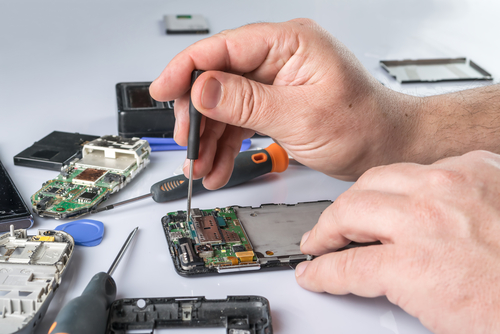
Your phone’s microphone is one of its most essential features, yet it’s easy to take it for granted until it suddenly stops working. When the mic fails, it can disrupt everything from phone calls and video chats to voice commands and recording audio. If you’ve found yourself asking, “Why has my mic on my phone stopped working?” you’re not alone. This issue can be caused by a variety of factors, ranging from simple software glitches to hardware damage. Understanding the potential causes and solutions will help you troubleshoot effectively or decide when professional help is necessary. Whether you use your phone for work meetings, social calls, or capturing moments, a faulty microphone can be frustrating. This guide explores the latest insights into mic problems and how to fix them, helping you get your phone back to peak performance quickly.
Common Reasons Your Phone Mic Stops Working
Several reasons might cause your phone’s microphone to stop functioning. Identifying whether the issue is hardware or software-related is the first step in finding the right solution.
Software Glitches and Bugs
Phones frequently update their operating systems and apps, but sometimes these updates cause glitches. A bug in the software might interfere with microphone permissions or cause the mic to malfunction. This is especially common after a recent system update or app installation. Restarting your phone or updating to the latest software version can often resolve these glitches.
Dirt, Dust, and Blockages
Microphone openings are tiny and can easily become clogged with dust, lint, or debris. Even a small blockage can muffle or completely block sound input. Cleaning your phone’s mic gently with a soft brush or compressed air can sometimes restore proper function.
App Permissions and Settings
Modern smartphones allow apps to access your microphone, but if permissions are turned off or misconfigured, the mic won’t work within certain apps. Check your phone’s privacy settings to ensure the apps you want to use the mic with have the correct permissions.
Hardware Damage
Dropping your phone or exposure to water can damage internal components, including the microphone. Water damage can corrode delicate parts, and physical impacts may loosen or break mic connections. This type of damage often requires professional repair.
External Accessories Interference
Using headphones or Bluetooth devices with built-in microphones can sometimes cause the phone’s internal mic to deactivate. Occasionally, the phone may get stuck in headphone mode, causing the built-in mic to stop working even after disconnecting accessories.
How to Troubleshoot Microphone Issues on Your Phone
Before rushing to a repair shop, you can perform some simple checks and fixes to see if your mic can be restored quickly.
Restart Your Phone
A simple reboot can clear temporary software glitches that might be affecting the microphone. Power off your device, wait a minute, and then turn it back on.
Test the Microphone Using Different Apps
Check if the microphone problem occurs across all apps or just specific ones. Try recording a voice memo or making a call. If the mic works in some apps but not others, it may be an app permission or software issue.
Check and Adjust App Permissions
Go to your phone’s settings, find the microphone permissions section, and verify that apps have access to the mic. Re-enable permissions if they are turned off.
Remove Cases and Accessories
Phone cases or screen protectors can sometimes cover or block the microphone unintentionally. Remove them and test the microphone again. Also, disconnect any headphones or Bluetooth devices to rule out external interference.
Clean the Microphone
Use a dry, soft brush or compressed air to gently clean the microphone openings. Avoid inserting anything sharp or wet, as this can cause more damage.
Update Your Phone’s Software
Ensure your phone’s operating system and apps are updated. Manufacturers regularly release patches to fix bugs that may affect hardware components like microphones.
Reset Network Settings or Factory Reset
If software issues persist, resetting network settings or performing a factory reset may help. Back up your data before doing this, as a factory reset erases all personal information.
When Is It Time to Seek Professional Help?
If none of the above steps work, your microphone issue might be hardware-related. Physical damage or internal component failure requires expert diagnosis and repair.
For residents in Colorado, trusting a reputable Cell Phone Repair Service Commerce City, CO can ensure your device is handled with care and precision. Skilled technicians can test your phone’s microphone hardware and replace faulty parts efficiently.
Common Hardware Problems Affecting Phone Microphones
Damaged Microphone Component
The microphone itself might be damaged or worn out, especially if your phone has experienced drops or impacts. This damage can result in a complete or partial loss of audio input.
Faulty Internal Connections
Loose or broken connections between the microphone and the phone’s motherboard can prevent the mic from functioning properly. Repairing this requires opening the device and checking internal wiring.
Water or Liquid Damage
Exposure to moisture can corrode microphone components and cause failure. Even if your phone seems to work fine otherwise, the mic may stop functioning.
Issues with Charging Port and Other Components
Sometimes the microphone issue is linked to damage in related components, such as the charging port or headphone jack. For example, a malfunctioning charging port can cause electrical interference affecting the mic. If your device has problems charging or connecting to accessories, it’s worth getting a samsung phone charging port replacement in port charlotte or similar repairs checked as part of the diagnosis.
Tips to Prevent Future Microphone Problems
Use a Quality Phone Case
A good case protects your phone from drops and impacts that can damage internal components, including the microphone.
Avoid Moisture Exposure
Keep your phone away from water and humid environments. Use waterproof cases if you are frequently near water.
Clean Your Phone Regularly
Gently clean microphone openings and phone surfaces to prevent dust and debris buildup.
Update Software Promptly
Keep your phone’s software and apps updated to avoid bugs that might cause hardware issues.
Remove Faulty Accessories
If you notice mic problems after using certain headphones or Bluetooth devices, avoid using them until they are fixed.
Conclusion
A non-functioning microphone can disrupt your ability to communicate effectively and capture important moments. If your mic on your phone has stopped working, the cause may be a simple software glitch, a blockage, or something more serious like hardware damage. Trying basic troubleshooting like restarting your device, checking app permissions, and cleaning the mic can solve many issues. But if problems persist, professional repair is the best course of action.
Click here to visit website for more interesting collection of articles


